If you have a beautiful logo, illustration, or graphic saved on your computer, you might be wondering how to turn it into custom embroidered apparel. The first hurdle most people face is realizing that embroidery machines cannot read standard picture formats. To stitch your design, you must convert your PNG to a DST file.
While standard images are made of flat pixels, embroidery machines require specialized files that dictate thread colors, stitch paths, and physical machine movements. In this comprehensive guide, we will explore the complete PNG to DST conversion process, review the best software, answer common questions, and explain why human digitizing often beats an automatic PNG to DST converter.
Ready to digitize your design?
Get a precise, machine-ready DST file from our expert team.
Get a free quoteUnderstanding the Basics: PNG vs. DST Formats
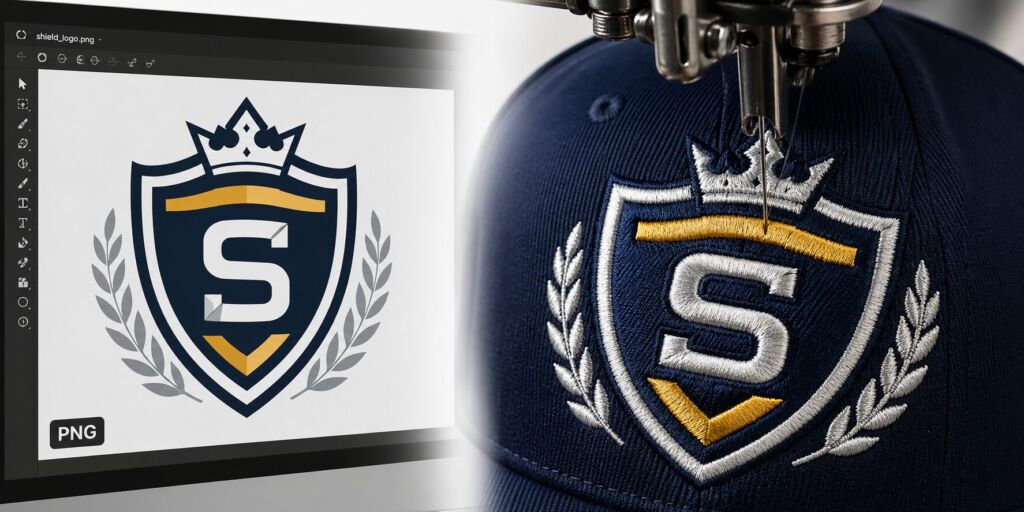
Before we dive into how to convert a PNG to an embroidery file, you first need to understand the fundamental difference between the two formats:
PNG (Portable Network Graphics): A standard, 2D image file known for lossless compression and transparent backgrounds. A PNG image is made of pixels. Your computer screen and web browsers read pixels perfectly, but a needle and thread cannot.
DST (Data Stitch Tajima): A highly specialized set of mechanical instructions used universally by commercial embroidery machines. A DST file contains exact mapping for X/Y coordinates, jumps, trims, and needle penetrations.
Because you are moving from a visual digital medium (pixels) to a physical medium (thread), you aren’t simply changing a file extension—you are digitizing a PNG for embroidery.
| Feature | PNG — Image | DST — Embroidery |
|---|---|---|
| Composition | Static pixels | Stitch paths & coordinates |
| Scaling | Pixelates at size | Maintains stitch density |
| Machine readability | Screen only | Universal machine format |
| Transparency | Alpha channel support | N/A — physical thread |
Why You Can’t Just “Save As” a DST File in Photoshop
A common misconception is that you can open Adobe Photoshop or Illustrator, click “Save As,” and magically export a stitch file. If you are searching for how to convert PNG to DST in Photoshop, you will be disappointed.
Photoshop is an image editor, not an embroidery digitizer. It does not have the native programming to calculate stitch density or underlay. To convert an image to a DST file, you need specialized software that acts as a bridge between graphic design and machine mechanics.
Can You Use a PNG to DST Converter Online for Free?
Many beginners immediately search for a “convert PNG to DST file online free” tool, hoping for an instant fix. While there are automated image to DST converters available on the web, they often yield mixed results.
Auto-digitizing software attempts to guess where stitches should go based strictly on color blocks. For incredibly simple, flat, high-contrast shapes, a free PNG to DST converter might give you a passable starting point. However, for complex logos with gradients, fine text, or intricate details, an automated PNG to DST online converter often creates chaotic stitch paths. This results in heavy thread breaks, ruined garments, and a poor-quality final product.
Expert Tip: Whether you use a free online tool or receive a file from a freelance designer, you should always audit the file before sending it to your machine. You can use our free Online DST Viewer to open, zoom, and inspect the Tajima stitch sequence right in your browser—no downloads needed!
Top Software to Convert PNG to Embroidery Files
If you want to handle the conversion yourself, you will need dedicated embroidery digitizing software. Here are the top programs ranging from beginner-friendly to professional-grade:
1. Ink/Stitch (Free & Open Source)
If you are looking for a completely free PNG to DST converter, Ink/Stitch is a powerful extension for the vector graphics editor Inkscape. It allows you to convert images to embroidery files at no cost. It has a steep learning curve, but it is excellent for hobbyists on a budget.
2. Embrilliance StitchArtist
Embrilliance is incredibly popular among home embroiderers and small business owners. While their basic tier focuses on editing, upgrading to the StitchArtist module allows you to import a PNG graphic and trace it into a stitchable design. It acts as a fantastic program to convert a PNG to a DST file for Mac users.
3. Brother PE-Design
Brother PE-Design is a robust, professional software suite. It includes advanced auto-digitizing features that attempt to convert a PNG into stitch data with much better accuracy than free online tools. Because it is a Brother product, it is also the perfect tool if you need a PNG to PES converter. (Note: Always verify your Brother files using our Free Online PES File Viewer).
How to Convert a PNG to DST File: Step-by-Step
Whether you use paid software or a free program, the fundamental process to convert a picture to DST remains the same:
Simplify and Clean Your PNG Image: Ensure your PNG is high-resolution (at least 300 DPI). Remove unnecessary background clutter, complex drop shadows, or tiny details that are too small to be accurately stitched with a needle.
Import the Image: Open your chosen digitizing software and import the PNG file to use as a background tracing template.
Map the Stitches (Digitizing): This is the most critical step. You will manually trace the image and assign stitch types (satin stitch for borders, fill stitch for large areas, running stitch for details). You must also account for “pull compensation”—calculating how much the fabric will stretch while being hooped.
Set the Thread Colors: Assign the correct color stops. It is highly recommended that you understand how your machine reads colors, as the DST format does not store visual color data the exact same way a digital image file does. (Learn more in our step-by-step guide on how to change DST colors).
Export and Run a Test Stitch: Save the finalized design as a
.dstformat. Never stitch a newly converted file directly onto your final garment. Always run a test stitch on scrap fabric first.
Frequently Asked Questions (FAQs)
Why Professional Digitizing Beats Auto-Conversion
- Messy stitch paths
- Frequent thread breaks
- No fabric-specific logic
- Distorted shapes
- Optimized stitch pathing
- Proper pull compensation
- Fabric-aware density
- Machine-ready (Tajima / PES)
While learning how to convert a PNG to an embroidery file is a fun skill, business owners and professional apparel decorators rarely rely on automatic converters.
Why? Because human digitizers understand real-world fabric mechanics. A professional digitizer knows that a logo stitched on a stretchy performance polo shirt requires entirely different underlay stitching than the exact same logo stitched on a thick structured baseball cap. A software program cannot make these physical-world calculations.
Need Your PNG Converted Flawlessly?
Converting a PNG image to a DST file shouldn’t be a headache that holds up your production line. Whether you need a simple chest logo or a massive, complex jacket-back design digitized, the team at Stitchify Digitizing & Vectorizing Services guarantees stitch-perfect results, fast turnarounds, and designs optimized for your specific fabric type.
Built by digitizing professionals with over a decade in the industry, we ensure your files run smoothly on commercial machines without breaking needles or wasting garments.
Get straight to stitching with Stitchify:
Custom embroidery digitizing
DST file repair and optimization
Vector artwork conversion
📧 Email: info@stitchifydigitizing.com 👉 Get a Free Quote: Embroidery Digitizing Quotation Form